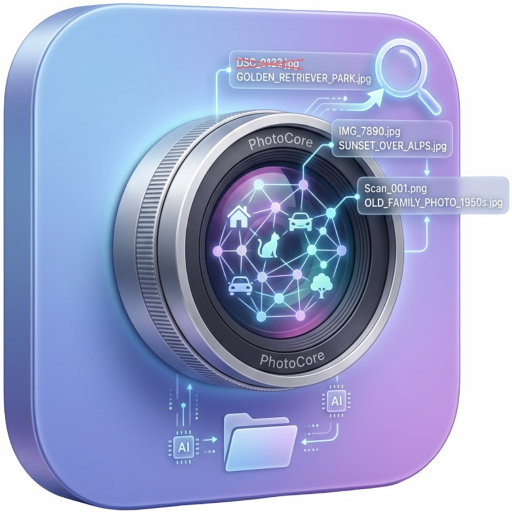
How to find old photos on a computer or external drive
Somewhere on a drive in a drawer sits the photo you want: grandma's kitchen, scanned in 2009 and saved as Scan_014.jpg. Opening folder after folder of Scan_001 and IMG_7890 files eats an afternoon and often ends empty-handed. PhotoCore indexes the drive once, read-only, and then finds photos from a plain description, even after the drive goes back in the drawer.
- Filenames like Scan_001 carry zero information. Search by what is in the picture instead.
- Plug in each old drive once, index it in place and read-only, then put it away.
- Face recognition works on scans too: name a person once and find them everywhere.
- Search runs offline, on your Mac. Unplugged drives stay searchable.
Why old photos disappear on your own drives
Old photo collections are the hardest to search precisely because of how they were made. Scanners produced Scan_001.jpg through Scan_400.jpg. Early digital cameras produced IMG_7890.JPG. Backups of backups copied the same folders onto new drives, and every migration lost a little structure.
Scans usually carry no useful metadata either: the file date is the scan date, and there are no GPS coordinates. So neither filenames nor metadata can answer "where is the photo of the red Fiat in front of the old house?". The picture itself is the only reliable index, and that is exactly what PhotoCore searches.
Plug in the old drive once and index it
Connect the drive, point PhotoCore at it, and let indexing run. Files stay in place, the drive is only read, and nothing gets imported or copied. PhotoCore computes an embedding per image on the Apple Neural Engine and stores it in a local SQLite database on your Mac.
Repeat for every drive in the drawer, one at a time. JPEG, PNG, HEIC, TIFF, WebP, GIF and BMP are all indexed, which covers scanner output and old camera files.
Search what you remember
Type the memory, in plain words: "grandma's kitchen", "the red Fiat", "kids on the beach in the 90s". PhotoCore matches the description against the visual content of every indexed image and returns results in under 50ms per 10,000 photos.
Queries work in more than 100 languages, so you can search in the language the memory lives in. No tags, no albums, no renaming needed first.
Search by person, scans included
Turn on face recognition (off by default) and name each person who matters from a few clear shots. Face detection and identity matching run on your Mac, and they work on scanned prints as well as digital photos. From then on, "@nonna in the garden" returns her photos across every indexed drive.
No face data ever leaves the Mac, and you can delete a person's data at any time. The full workflow is in the guide on finding all photos of a person and on the face recognition feature page.
Use dates and places where metadata exists
Digital-era photos usually carry a capture date, and many carry GPS coordinates. For those, the calendar date-range filter narrows any view to exact days, and the map view shows them as pins on Apple Maps, grouped by place.
Photos without metadata are not penalized. They simply skip the date and map filters and stay findable by description and by person.
Put the drive back in the drawer
Once indexed, the drive can go back in the drawer. The index lives on your Mac, so searching keeps working offline and with the drive disconnected. Each result shows which drive holds the original; plug that one back in only when you want to open or copy the file.
This turns a shelf of anonymous drives into one searchable archive. The external hard drive page and the offline photo search page cover this setup in more depth.
Frequently asked questions
Can I search a drive that is unplugged?
Does face recognition work on scanned photos?
What if my scans have no dates or GPS data?
Which image formats can PhotoCore index?
Reopen the drives in the drawer
Download PhotoCore free, index up to 200 images from an old drive, and search what you remember. PhotoCore Full is a one-time purchase.