
Find every photo of your dog or cat
Your dog is in a thousand photos and not one of them carries his name. PhotoCore recognizes dogs and cats on your Mac, next to the faces. You give the animal a name once in Quick Look, and from that moment his photos are one search away, in every folder and on every drive you have indexed.
A thousand photos of the same dog, and no way to ask for them
Photo apps learned to recognize people years ago. The dog asleep on the sofa, running on the beach, sitting in the car stays out of reach: you scroll, you try to remember which summer it was, you open four folders. With 20,000 photos, the album for the vet, for the breeder, for the frame on the wall never gets made. Pet recognition exists to take that work away.
Give the animal a name, once
From Quick Look, in a few seconds
Turn on Pet recognition in Settings > General. It sits under face recognition and has a switch of its own, so you can have one without the other. PhotoCore then analyzes the photos it has already indexed, starting with the folder you have open and continuing through the rest of the library in the background. New photos are analyzed while they are indexed.
Open a photo in Quick Look. The People & Pets panel shows the crop of the animal with a dog or cat icon and the row Name this pet. Type the name, press Return, and PhotoCore looks for the same animal in your other analyzed photos. Dogs are compared only with dogs, cats only with cats.
- Dogs and cats, recognized on your Mac
- A dog held in someone's arms is found too
- Its own switch, off until you turn it on
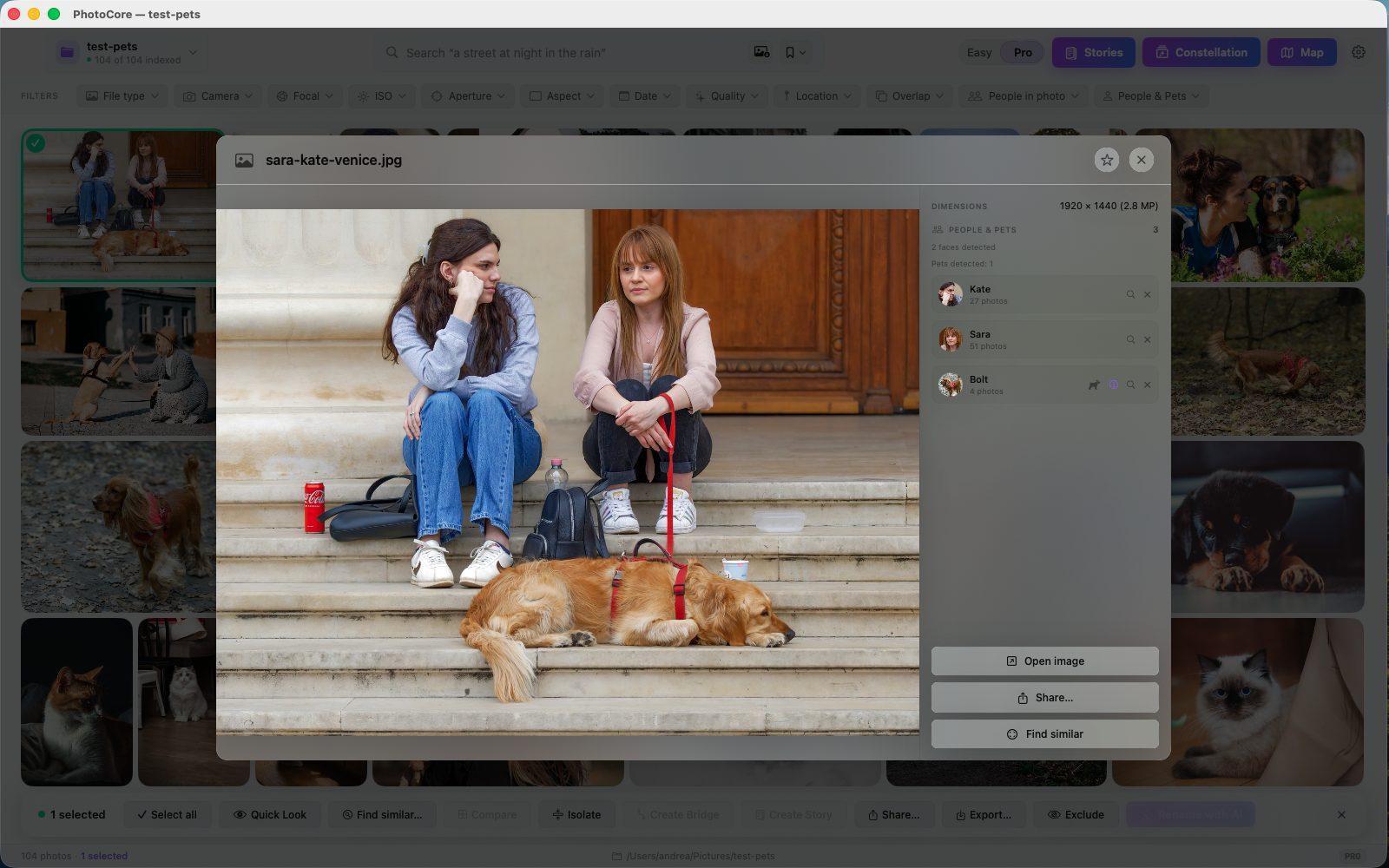
Three poses beat three photos of the same pose
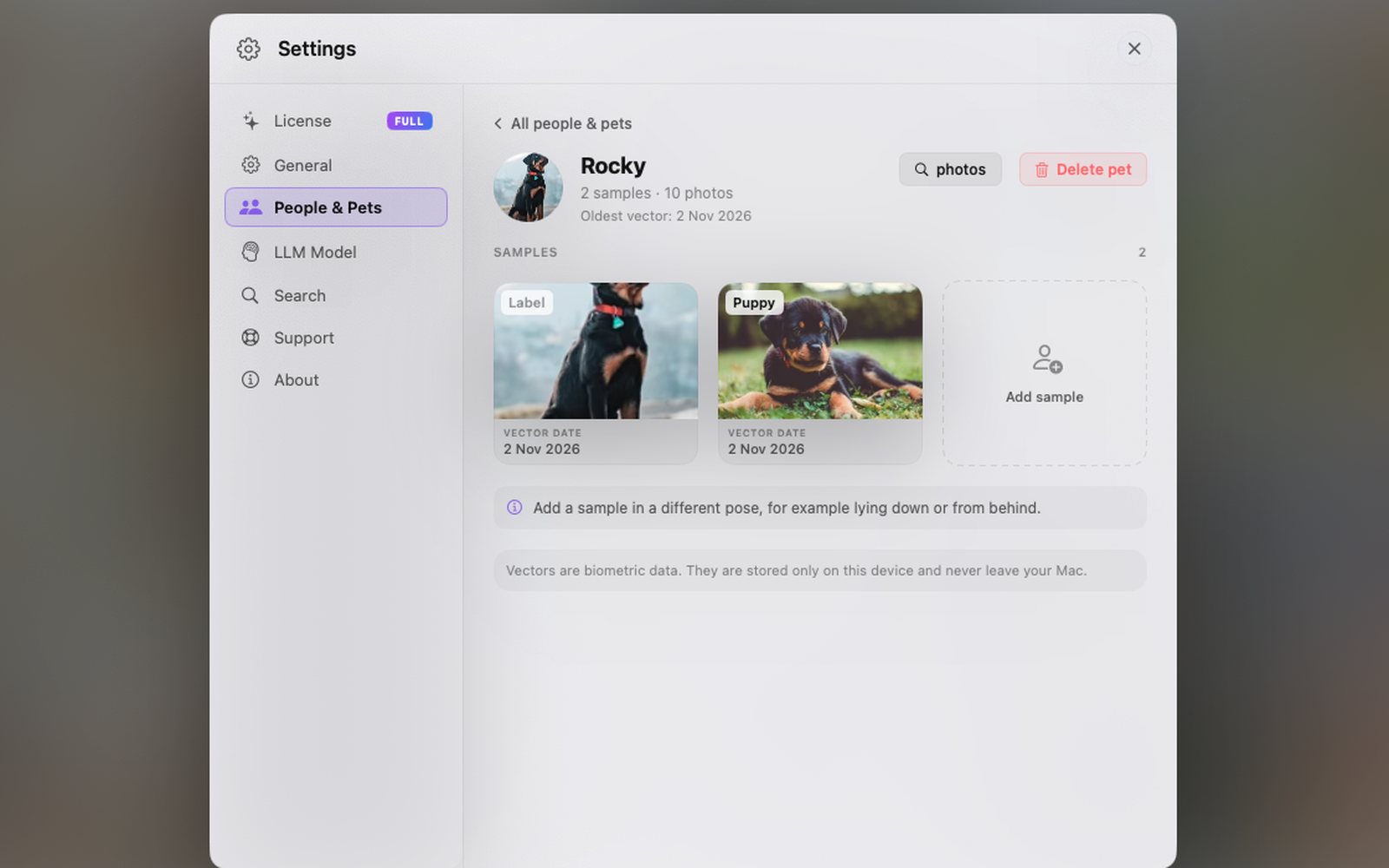
Why a pet needs samples
A dog lying on the sofa and the same dog running on the beach are two very different pictures for the app. Each animal is recognized from its samples, so add at least three in different poses: standing, lying down, seen from behind. While a pet has fewer than three, its card says so.
The pet card lives in Settings > People & Pets, where people and pets sit in separate sections. From there you add a sample, remove a photo that was matched by mistake, and see when each vector was created.
For people there is one more control. Face similarity in Settings > Search sets how closely a face has to resemble a person's samples before it takes their name, in three levels: Standard, High and Very high. Higher gives fewer photos per person and fewer faces of other people, which helps when someone has only one or two samples. The change applies right away to the faces already analyzed, and the samples always keep their name. Pets follow their samples: adding one in a new pose is what moves the matching.
Mention your pet inside any search
Names work in the search field, next to meaning. In Pro mode the People & Pets filter lists the people first and then the pets, each with the icon of its species. Type @ and the first letters of a name: @Anna @Bruno beach returns the photos where the two of them are at the sea together. The subject filter and the semantic engine run in the same query, the way the AI photo search page describes.
Semantic Bridge gained a Shared subjects button as well: when both ends of the bridge have the same named people or pets, the intermediate photos where they appear are preferred. The weight is light, so the bridge keeps following the path between the two ideas. Faces and animals without a name do not count.
Crops, vectors and names stay on your Mac
Off until you turn it on
Pet recognition is off when you install PhotoCore and stays off until you turn the switch on. Detection and identity run on the Apple silicon chip in your Mac. There is no cloud, no account and no tracker, so nothing about your animals is ever uploaded.
- Off by default, with a switch of its own
- Detection and matching run on your Mac
- Keeps working with the drive offline
Delete the data when you want
Delete pet gives you the same two choices as people: delete and never recognize again, or delete only the vector. To erase everything, turn both switches off in Settings > General and choose to delete face and pet recognition data. The photo files are never modified.
- Delete one pet or all of the data
- Two choices, the same as for people
- Your photo files stay untouched
PhotoCore and Apple Photos, side by side
Apple Photos groups faces and pets on its own, in the background. You can set a key photo, confirm a suggestion, fix a wrong match and merge two cards. What the algorithm actually matches against, the sample crops, stays out of reach, and so does the switch that would stop it. PhotoCore puts both in your hands.
| What you control | Apple Photos | PhotoCore |
|---|---|---|
| Samples | Faces and pets are grouped automatically in the background. You can set a key photo, confirm a suggestion, fix a wrong match or merge two cards. The sample crops the algorithm recognizes the subject from are not shown and cannot be edited. | The sample card is open for every person and pet. Add crops from other angles and poses to guide the matching, get a reminder while there are fewer than three, and remove a single crop whenever you want. |
| Similarity threshold | Fixed. There is no setting for how close a face has to be before it takes a name. | Face similarity in Settings > Search, in three levels: Standard, High, Very high. The change applies right away to the faces already analyzed, and samples keep their name. |
| Turning it off | Visual indexing runs as a system service. macOS and iOS have no switch to turn face or pet recognition off. | Off until you turn it on, with two switches that work independently, one for faces and one for pets. |
| Biometric data | The database of vectors is out of reach. You cannot empty the store of prints or purge the ones recorded before a given date. | Full control of the local database: erase the whole store, delete the vectors created before a date you choose, or delete only the prints and keep the subjects. |
The two choices fit different people. Apple Photos does the grouping without being asked, which suits anyone who wants nothing to set up. PhotoCore asks you to turn recognition on, and then hands you the samples, the threshold and the delete commands.
What it does not do
- Dogs and cats only. Other animals stay findable by writing the word, because the semantic search reads the picture.
- Photos only. Videos are not analyzed for pets.
- Two animals of the same breed and the same colour can end up under one name. More samples of each help, and the separation can stay partial.
- A very small animal in the frame is skipped, because a tiny crop gives nothing to compare.
Frequently asked questions
Which animals does PhotoCore recognize?
Is pet recognition on by default?
How many photos do I need to name a pet?
Does any pet data leave my Mac?
My two cats look alike. Will PhotoCore tell them apart?
Can I delete the data about my pet?
How is this different from Apple Photos?
Can I make the recognition stricter?
Related pages
Face recognition
Name a person once and every photo of them is a search away, with @mentions and filters by number of people.
AI photo search
Write what you remember and get the photo, on device, in more than 100 languages.
Semantic Bridge
Two photos, and the path between them, now with a preference for the people and pets they share.
What's new in 1.14
Everything the People and Pets release changed, surface by surface.
Give your archive a name
Download PhotoCore Light, index a folder with your dog or cat in it and give the animal a name. When you want the whole archive and every drive in one place, PhotoCore Full is a one-time purchase.